Friday, October 24, 2008

iTunes Icon in iPhone PHOTOSHOP

Step 1

First, open up a new document - 125 x 125 pixels at a resolution of 72 DPI. Fill your canvas with black.


Step 2

On a new layer, grab the rounded rectangle tool. With the radius set to 9 and your foreground set to white, draw in a rounded rectangle. Name this layer “icon base.”


Step 3

Apply the following gradient overlay. The color on the left of the gradient should be #a800ff while the color on the right should be set at #8a00ff.


Step 4

Hold Command (Ctrl for PC) and click on the thumbnail for the layer “icon base.” This will select the icon.


Step 5

Create a new layer, with the “icon base” still selected. Fill in the selection with white. Go ahead and name this layer “starburst” because it is where we will be making the starburst effect.


Step 6

With the layer “starburst” selected, go to Filter>Noise>Add Noise. Apply the following settings:


Step 7

Hit Command (Ctrl) + D to deselect the starburst layer. Go to Filter>Blur>Radial Blur and apply the following settings:


Step 8

This is what your image should look like thus far.


Step 9

Hold Command (Ctrl for PC) and click on the thumbnail for the layer “starburst.” This will select the burst you have. Now, hit Command+Shift+I to invert your selection. Hit delete to remove the extra starburst.


Step 10

Lower the opacity to 41%. Your icon should now look like this:


Step 11

On the “starburst” layer, add a layer mask. With a Black to White gradient, and the gradient set as Radial, drag from the center of the icon to the edge. This will clear out the starburst effect from the middle of the image.


Step 12

Create a new layer. Name it “Gloss.” Grab the Ellipse Tool and with your foreground as white, draw this shape:


Step 13

Hold Command (Ctrl for PC) and click on the thumbnail for the layer “gloss.” This will select the gloss you have. Now, hit Command+I to invert your selection. Hit delete to remove the extra gloss. Lower the opacity of this layer to 73%.


Step 14

Add a layer mask to the “gloss” layer. With a black to white gradient, drag from the middle of the icon to about the middle of the gloss. It should lower the opacity of the bottom half giving you something like this:


Step 15

I hope you named your layers for this one! Command+Click the thumbnail for “gloss.” Press Command+I. Then, Command+Option+Shift+Click the thumbnail for “icon base.” You should have a selection like this:


Step 16

Create a new layer and name it “shadow. Now, using a black to transparent gradient, drag your mouse like this while holding the Shift key:


Step 17

Lower the opacity of your “shadow” layer to 53%.


Step 18

Next, go ahead and grab your brush tool. Set the diameter to 100 and the hardness to 0. Create a new layer titled “bottom glow.” With white as your foreground color, simply make one brush right at the bottom of the icon.


Step 19

Crop out the brush from your “bottom glow” layer that is not in the icon. Lower the opacity of “bottom glow” to 45%.


Step 20

Now we are done with the overall icon. Next, we just need to add in the ring and the arrow. To start the ring, grab the elliptical marquee tool. Holding down the shift key, draw out a selection like this:


Step 21

Create a new layer titled “ring.” Fill in the selection you have with white. Next, go to the top menu and choose Select>Modify>Contract. Contract your selection by 5 pixels and hit delete.


Step 22

Apply the following layer style:


Step 23

Create a new layer titled “arrow.” Choose the arrow in your custom shapes pallet (U) and draw an arrow like this:


Step 24

Press Command+T to enter transform mode. Right click and choose “Rotate 90 Degrees CW.”


Step 25

Copy and paste the layer style from your “ring” layer onto your “arrow” layer. Your icon should look like this. Congratulations! You’re finished!


Extra

Have some fun messing around with different opacities, layer styles, colors, etc. There are literally endless possibilities.

Glossy Download Icon In PHOTOSHOP

Step 1

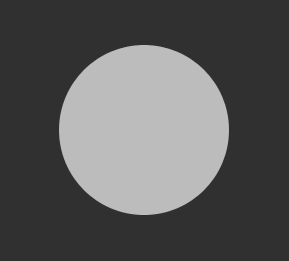
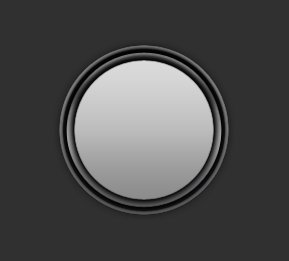
Let's start our new document by setting the background color to #303030. Then create a circular shape using the Ellipse tool (U), keep holding Shift while dragging outwards to create a perfect circle. Start dragging from the center of the canvas while holding down Alt. This way the shape is centered around the initial position of your mouse. Fill this shape with #bcbcbc, and name the layer "ring 1."

Step 2

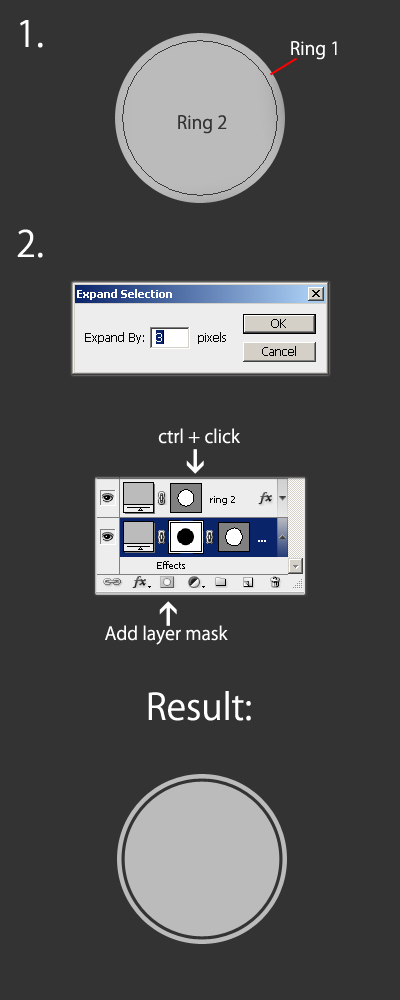
Duplicate the "ring 1" layer. Then use the Free Transform Tool (CMD+T) to re-size the circle slightly, so that it matches the one created previously. I've named this layer "ring 2."

CTRL + Click on the "ring 2" layer to create a selection around the smaller circle. Then navigate to select > modify > expand. Then use an expansion radius of 3 pixels. Go back to the "ring 1" layer and hit the Add Layer Mask button in the layer palette, as illustrated below. This cuts out the part that is covered by the "ring 2" shape.

Step 3

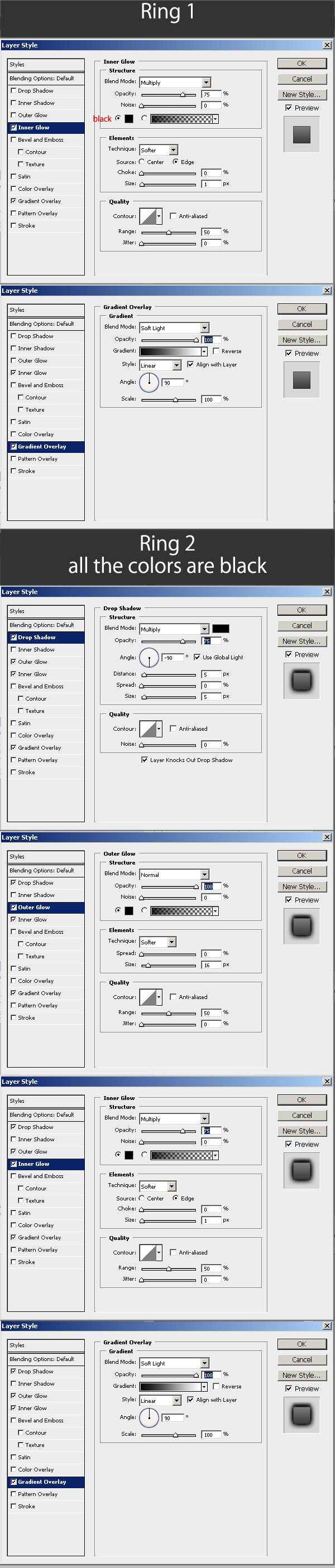
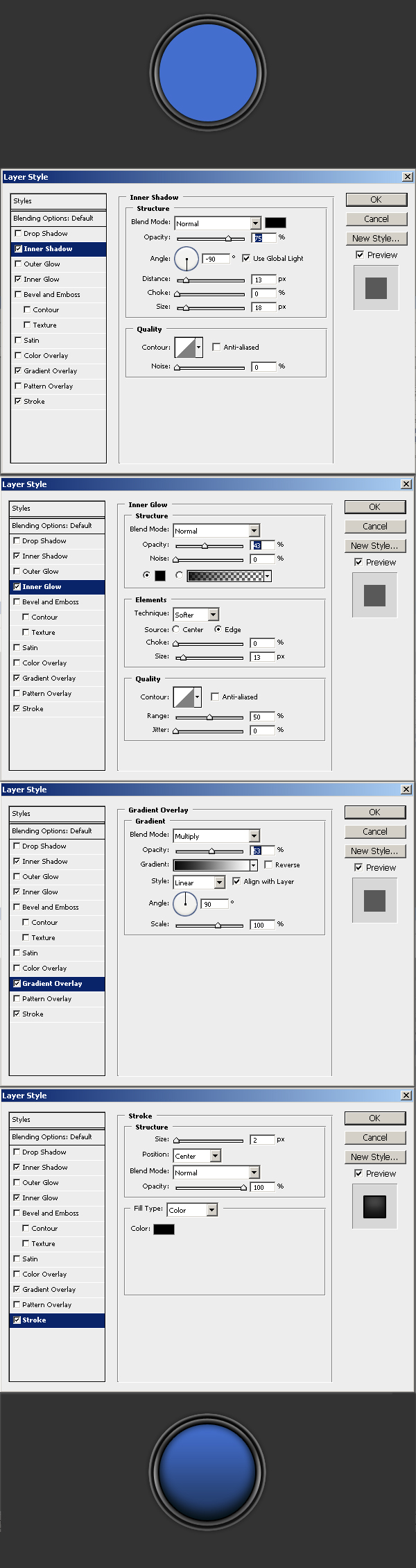
Next apply layers styles to both "ring 1" and "ring 2" layers. Follow the instructions in the image below. A gradient overlay is generally used on the 'outer shell' of a web graphic to give it depth. It can be used to inset an image when contrasting gradients are used. This is an old technique, which is not necessary for our image. Furthermore, inner glow, when used with dark colors will create a sort of 'inflated' look. It gives the illusion of a shadow being present all around the shape, thus causing the shape to rise up from the canvas.

Step 4

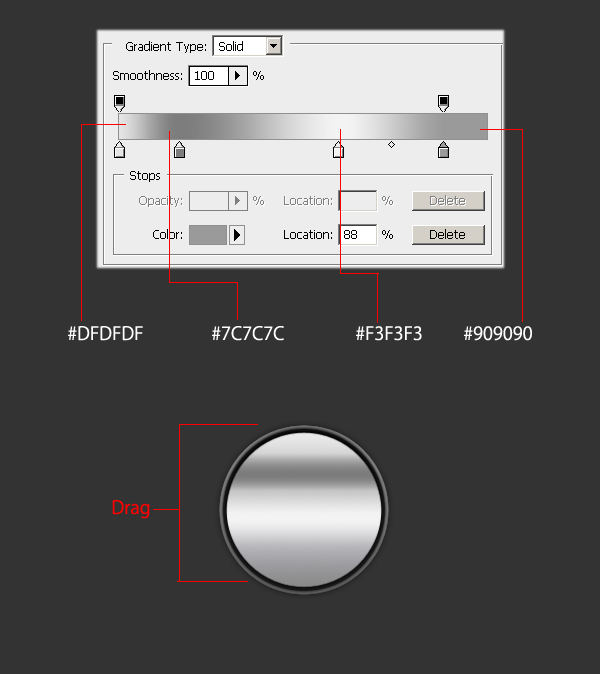
Select "ring 2" again, and on a new layer drag down a gradient. Set this layer to hard light.

Step 5

On a new layer, create another ring and apply the same layer style as was used on "ring 2" (see step 3). I called this layer "ring 3." It may seem unorthodox to stack the same elements over and over again, but the layered effect is a time saving technique used to create something complex looking.

Step 6

Duplicate the "ring 3" layer and call it "fill." Our icon is going to be blue, so fill it with #446fce. Then change the layer styles, as shown in the image below.

Step 7

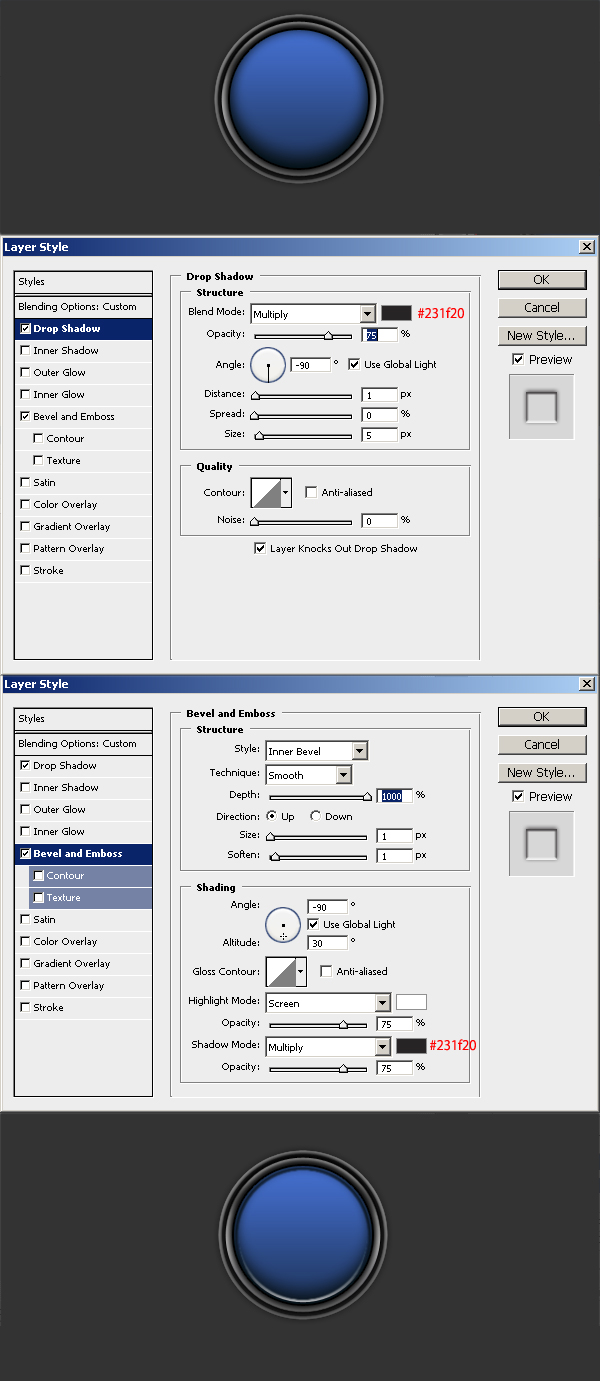
Duplicate the "fill" layer. Then set the fill to 0% (Not the opacity). Then call it "highlight ring," and apply the layer styles shown below.

Step 8

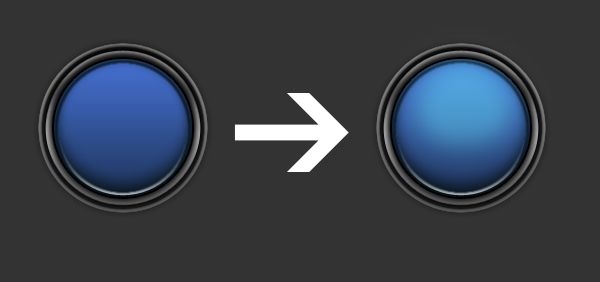
Create a new layer, call it "highlight brush." Then set it to soft light. Next, using a soft white brush gently tap the top of the blue part until it starts to light up.

Step 9

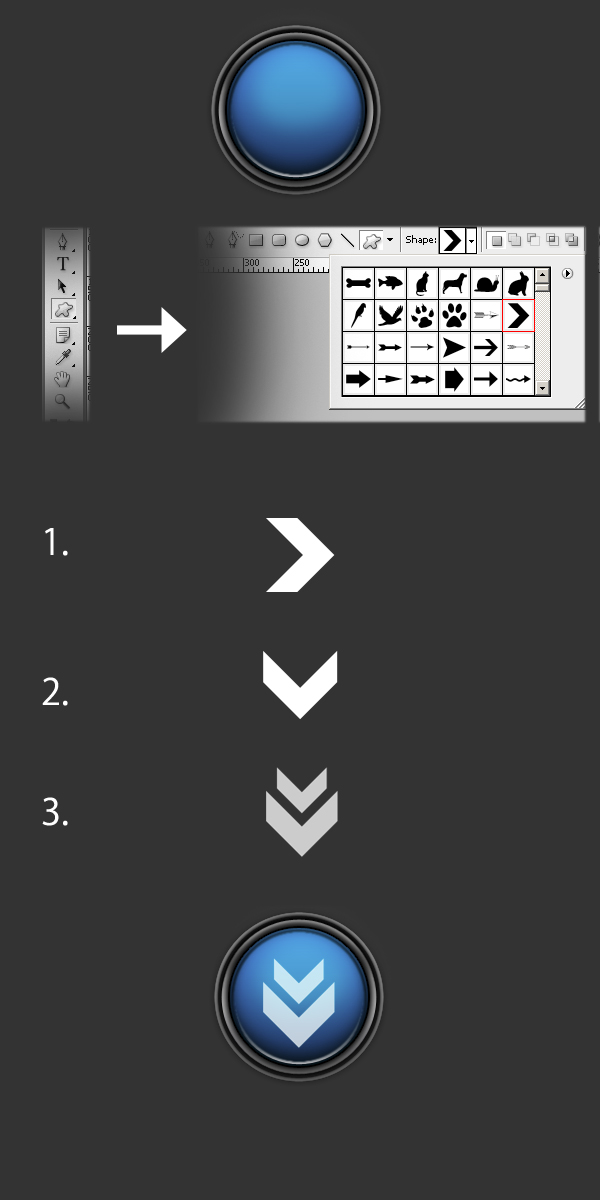
Go to the custom shape tool. Then at the top, select the arrow that I marked in the image below. Drag this arrow out while holding shift for a nice even shape. Rotate it, so that it faces downwards, use free transform (ctrl/cmd + t) to do this. Then duplicate the layer, move it up a bit (you can use the arrow keys), and again use free transform to make it slightly smaller. Hold shift when making the element smaller so that it retains the correct proportions.

Step 10

I merged these two shapes and called the layer "arrows." Next, add the following layer styles to this layer.

Step 11

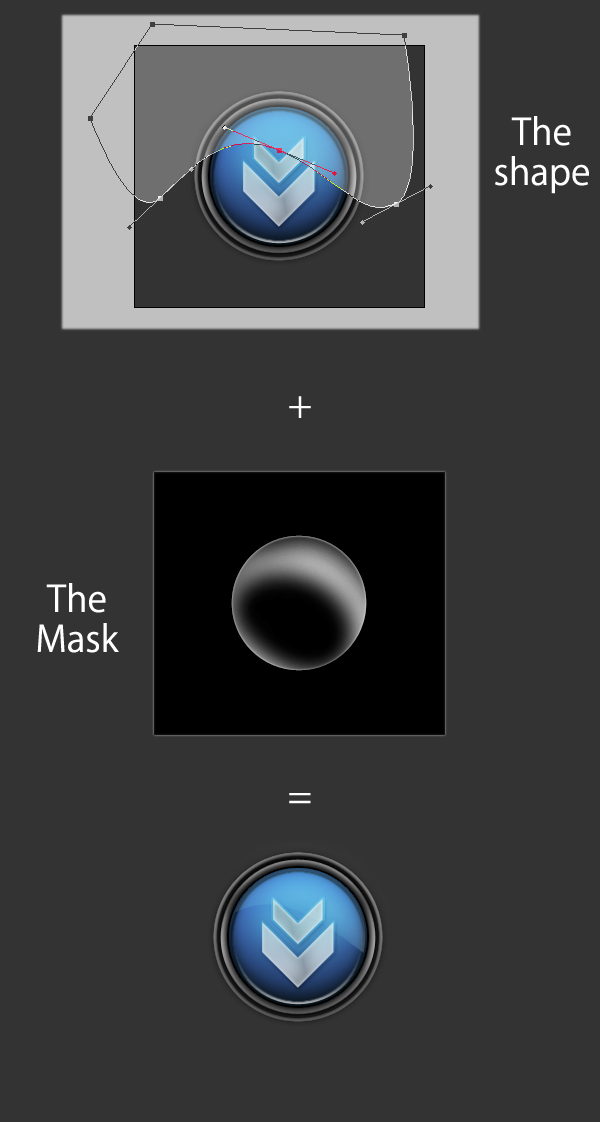
Time to add the gloss, I called this layer "glossy". First, I drew out a shape. Then I set the opacity of that layer to 30%. Next, I ctrl/cmd + click on the blue layer. Then I select the circle outline. Hit the mask button (like in step 2), and everything outside of the selection is masked away. Use a soft black brush on the mask, and go right along the edges to soften them up. This is a matter of taste though.

Step 12

Lastly, let's add a shadow on a new layer below all of the other layers we just created. Use a soft black brush and tap in such a way that just the edges of each brush stroke are visible. Our final image is below.

Conclusion

What have we learned in this tutorial? We've learned to stack elements upon themselves to create depth. We've learned to use layer styles to create depth and 3d shapes. We've learned that simple objects can be turned into complex images easily. We've learned that simple glossy effects should be used properly. Don't abuse them. Web 2.0 is much more than just gradients. Enjoy, and thanks for reading!
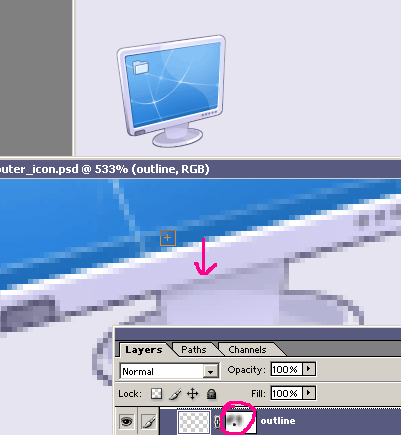
XP Style Monitor Icon In PHOTOSHOP

Step 1

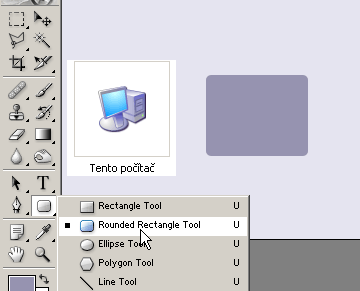
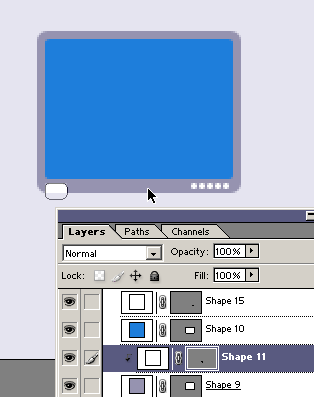
First, we copy the XP system icon into a new document to use it as inspiration for this design. Then choose a purple color (#9693B0) and draw a rectangle, which makes the basic shape of a screen. Use the Rounded Rectangle Tool and set a proper radius.

Step 2

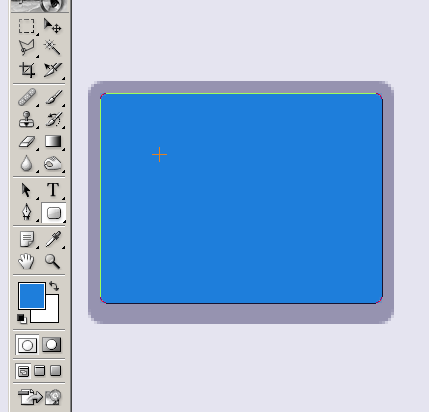
Change the color to blue (#1E7EDB) for the desktop background. Then draw the inner part of our monitor. Make this radius a little smaller. Also, leave some space below for the control panel.

Step 3

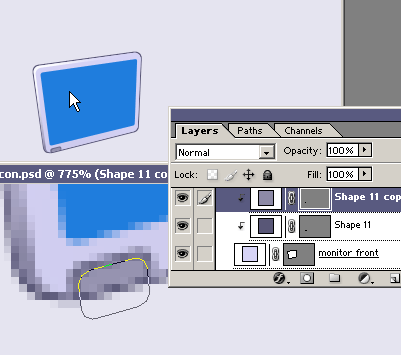
It's good to draw buttons on the right side into one layer. Hold the Shift key while drawing. Then move to the other side and create a bigger switch shape. Then set the Clipping Mask of the previous layer (Ctrl+Alt+G). The switch layer is called "Shape 11."

Step 4

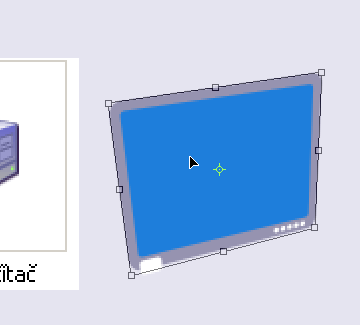
That's enough for now, so let's transform it by going to Edit > Transform > Distort.

Step 5

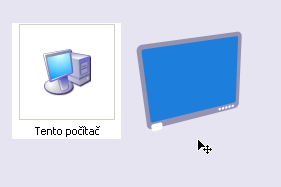
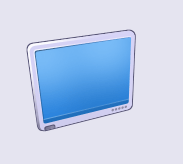
The 100% size result so far is shown below.

Step 6

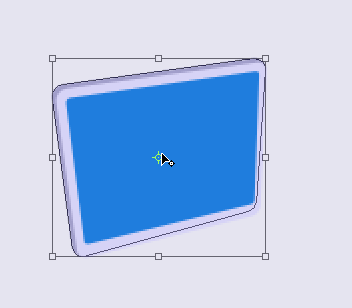
Now we will add a third dimension to our monitor. Copy the first layer (Ctrl + J). Then use the same transformation, but make it bigger on the top left and top right. Change this layer's color to dark purple (#A19ECA). Then set our first layer to a light purple color (#D6D3F6).

Step 7

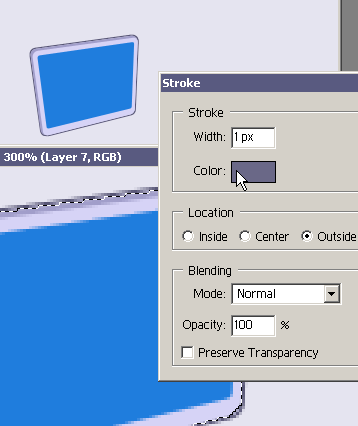
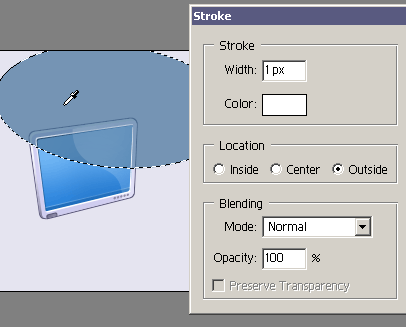
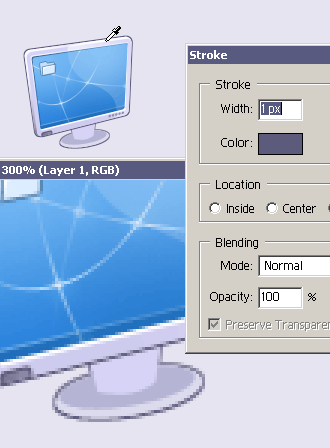
Make selections from both layers (Ctrl+Shift+Click on the layer). Then from the Edit menu call the Stroke function. Set the size to 1 pixel, and the color to dark purple (#6A6887). Then press OK. Of course, we could use the layer effects, but we chose this way because we'll want to hide a small piece of this contour.

Step 8

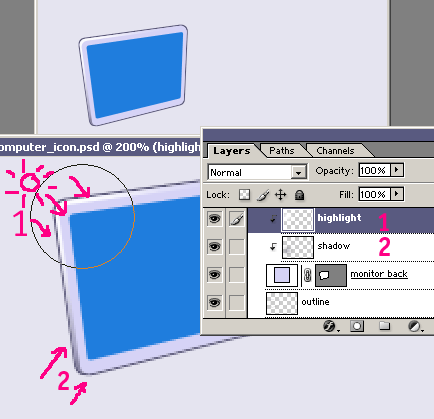
Create more layers above the monitor back. Then set the Clipping Mask of the previous layer (Ctrl+Alt+G). Pick up the Brush Tool. Then with a soft brush selected, draw the highlights (1) and shadows (2).

Step 9

We can play with the control panel as well. Copy the switch layer, give it a lighter color (#9693B0). Then make it a little smaller. These tiny details will always make your work more interesting.

Step 10

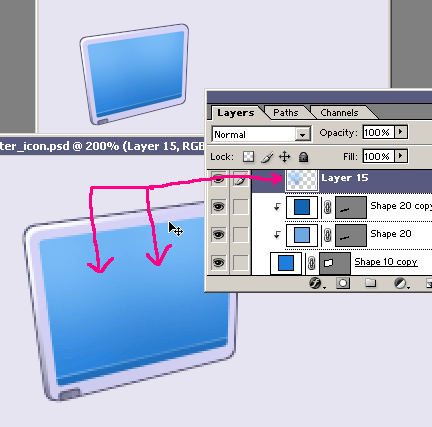
Now we work on the monitor screen. Add a new layer, and draw a light blue (#70B5F4) gradient. Then add more shapes to create the illusion of having a taskbar.

Step 11

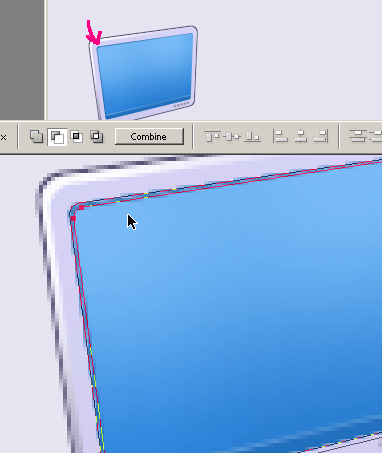
To give the screen a more plastic look, draw an appropriately dark and light outline around it. We could use the Stroke function, but we'll try something different this time. Draw the outline as a layer shape, so it disappears towards the edges.

First, copy the layer of the screen (Ctrl + J). Then select the shape with Select Path Tool (A). Copy the shape and insert it. Then move it slightly on the sides, and subtract it from the original shape (second icon on the tray). Use Distort Transformation to make the shape disappear towards the edge and stretch the shape well.

Step 12

Copy the layer again (Ctrl + J). Then fill it with a white color. Move it 1 pixel up and toward the left. This makes the outline more visible. The 100% view so far is below.

Step 13

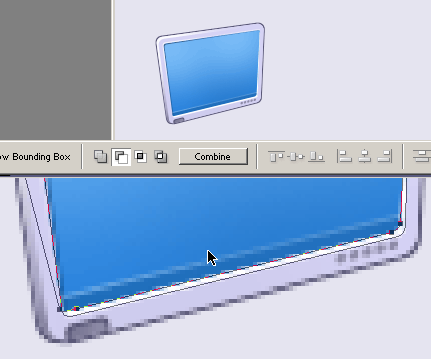
We'll work with the bottom part of the screen in the same way. You'll need only one shape filled with a white color. The screen looks quite plastic now.

Step 14

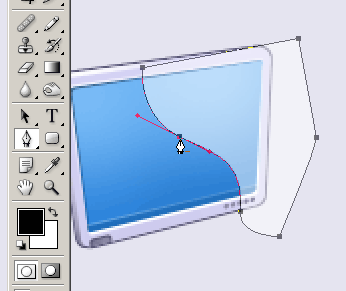
Now let's add some reflections. The Pen Tool comes in handy. It's up to you to choose where the reflection will be.

Step 15

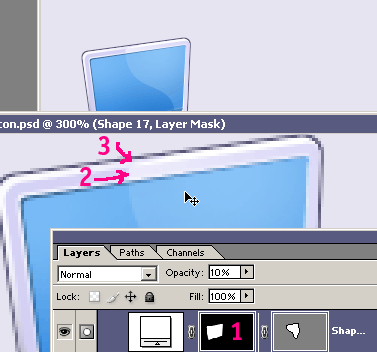
An important thing to do here is set the Layer Mask of our reflection (1). Load it (Ctrl+Shift+click on all layers) to make the reflection visible only there. This is where we want it to be - above the monitor layer (2), and the back side of the monitor (3).

Step 16

Make the desktop background more attractive with an old trick. Draw an Ellipse (any size) with the Ellipse Tool. Then make a selection from the layer (Ctrl+Shift+click). Then set the Stroke as a 1 pixel outline into a new layer.

Step 17

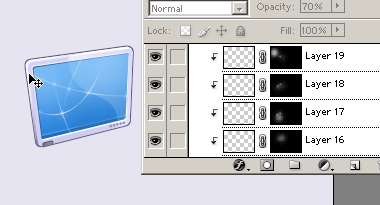
Turn the ellipse around, transform it, and give it a 1 pixel Stroke in a new layer again. Do this several times. Then add a layer mask to every ellipse layer. Fill it with a black color so that nothing is visible. Then use a soft white Brush to draw where you want the outlines to be visible. Add more white on places where the outlines cross each other.

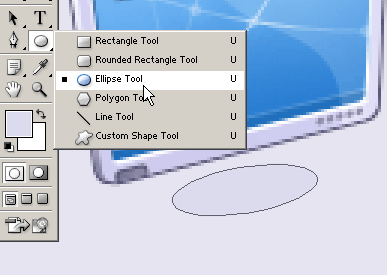
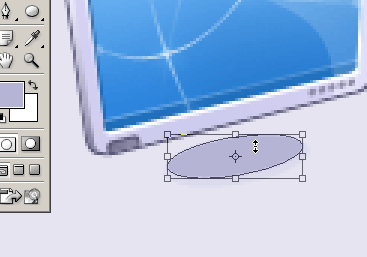
Step 18

The final part of the monitor to create is the monitor stand. Draw an ellipse (#DCDBEE color). Then transform it with the Distort function.

Step 19

Copy this (Ctrl+J), make it smaller (Ctrl+T), and fill it with darker shade (#B6B4D4).

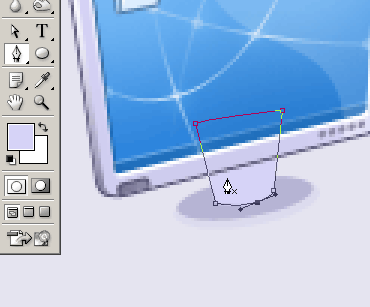
Step 20

To draw the main part of the stand you will have to use the Pen Tool. Then create a shape, as shown below.

Step 21

Then we will create outlines of every shapes. First, make the selection from monitor stand layers (Ctrl + Shift + click the layers) and choose Stroke function - #5D5B7B color.

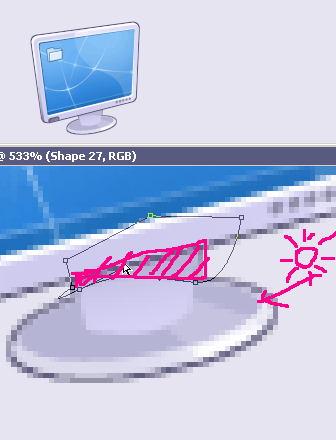
Step 22

All you need to add now are some shadows and highlights. You can use the Pen Tool again. Just don't forget that the stand isn't the main area that users should focus on. Be careful with shadows and highlights, don't make them too expressive.

Final step

The final step is to erase the outline of the monitor screen where it touches the stand. Add a Layer Mask and draw into it with hard black brush. If you don't use 100% opacity, you could leave the outline visible a little. This is the reason we didn't create the whole outline of this spectacular icon. Instead, we have two basic outlines - one for the monitor screen, and a second one for the stand itself.

Conclusion

And that's all! I hope you learned something new about icon design in Photoshop.